Share
The Share tab creates an easy environment for you to share elements of your digital life with family, friends, colleagues, and/or clients. You may share any folders across your ClickRight Network inside the same ShareRoom (e.g. a folder of photos from your Mac and a folder of photos from your PC). More information on how to create and manage a ShareRoom is detailed in the 'Creating a ShareRoom' section below.
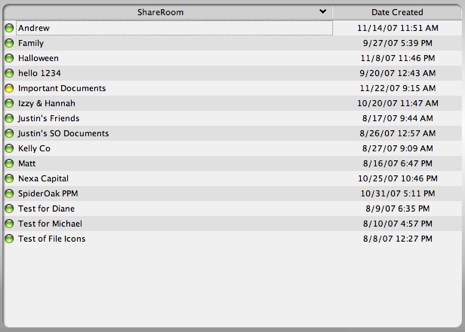 |
The main window shows a list of previously created ShareRooms. The 'light' to the left of the ShareRoom shows the state (Active, Pending, or Inactive). On the left side of the screen is the Share Characteristics box which provides high level information on each ShareRoom - necessary for providing access to guests. |
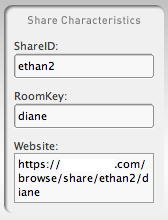 |
Share Characteristics - Located in the upper left corner of the Share tab, the 'Share Characteristics' lists your ShareID, the RoomKey, and share URL to access the ShareRoom. In the main window you will see a list of current ShareRooms. Should you wish to view the RoomKey or share URL for a given ShareRoom, you can do so by clicking on the ShareRoom in the main window and viewing the details in the 'Share Characteristics' box. |
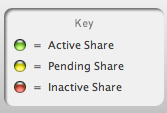 |
Key - There are currently three different states of a ShareRoom: Active, Pending, or Inactive. The green light or 'Active' means the ShareRoom is open and available to guests. The yellow light or 'Pending' means that the ShareRoom is in the process of building and not yet available. The red light or 'Inactive' means the ShareRoom is unavailable to guests. |
 |
New - Creates a new ShareRoom. |
 |
Edit - Allows you to edit an existing ShareRoom. Once you select a ShareRoom, the 'Edit' button will become active. |
 |
Save - Saves a new or edited ShareRoom. |
 |
Delete - Deletes a ShareRoom. Once you select a ShareRoom, the 'Delete' button will become active. |
Creating a ShareRoom - Creating a ShareRoom can be accomplished in a few simple steps. Once you click the 'New' button, you will be prompted to: a) name the ShareRoom; b) choose a RoomKey; c) select a duration of time for the ShareRoom to be available to guests ('Room to remain open for:'); d) add a description (optional); and e) attach the folders that will be viewable in this ShareRoom. Descriptions of each step can be found below.
Once created, a ShareRoom may be distributed one of two ways: 1) by e-mailing out the website address; or 2) by providing guests with your ShareID and RoomKey (or password) for the given ShareRoom.
ShareID - The ShareID can be thought of like a public username that you may distribute (along with a RoomKey) to guests. ShareIDs can take the form of a nickname, company name, or other public name. Examples include: bobbiejohnson, daniel_smith, orange-peal, and blue_tile_corp. Although a ShareID can be the same as your ClickRight Username, we suggest against this practice for security reasons.
RoomKey - The RoomKey acts as a password for your ShareRoom. A given RoomKey may be as simple or as complicated as you like. Similar to your ShareID, RoomKeys must contain a constant string of letters, numbers, underscores, and/or dashes (with no spaces). Examples include: friends, ttgg447_tiger, blueflower, and client123-abc.
Duration or 'Room to reman open for:' - This field will allow you to open or close a ShareRoom based on an amount of time. For example, if you want to open the ShareRoom up to guests for 2 hours, 4 hours, 7 days, and so on you can select that option from the drop-down menu. NOTE: Currently ClickRight only supports keeping ShareRooms open 'Indefinitely' - additional options will be available shortly.
Description of Room (optional) - This is a free-form text box that may provide a brief description of the ShareRoom contents or a note to guests. The description will appear on the ShareRoom web page and it may be as short or as long as you like.
Selecting folders for ShareRoom - To select a folder or folders for your ShareRoom, click on the 'Select' button. A pop-up will appear displaying all of the data for the device listed in the drop-down menu at the top. You can switch between devices by using the drop-down to share items from multiple machines with the same ShareRoom. To select a folder, click on the name and use the green arrow to add it to the 'Selected' column. To remove a folder from the 'Selected' column, click on the folder name and use the red arrow.