Back Up
The ClickRight process begins by selecting data to backup on the Backup tab. You may select data at a high level using the 'Categories' section on the left or specific folders within the main window. To expose additional elements in the tree, click on the '+' located to the left of each high level item. Data is selected by clicking on the checkbox corresponding to a category or specific folder. Once your selection is saved, any additions or edits under that category or folder will automatically be backed up and stored in your ClickRight Cloud.
You may also backup data that exists on external drives or any available network volumes. On Windows, these external drives will appear as volumes in the main tree. On Mac, you will have to click the 'Show/Hide Hidden Folders/Files' button located above the main window; once pressed, the external drives will appear under /Volumes in the main tree. On Linux, external drives typically appear under /Media.
The lighter gray checkbox signifies you have selected data within a particular folder but not all the contents of that folder. It was designed to better help you understand where and what data has been selected as part of your backup set.
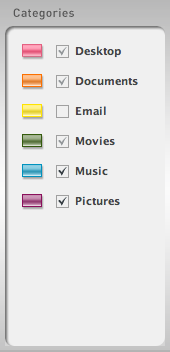 |
Categories - The 'Categories' serve as a shortcut to all items that fall under the category description (e.g. Desktop, Documents, Movies, Pictures). They may be used two different ways: 1) you can back up all the data under a specific category by clicking on the corresponding checkbox; and 2) you can view all the data under each category by clicking on the category name (e.g. Desktop, Documents, Pictures). NOTE: The 'Categories' correspond directly to the way you store data on your computer; therefore, if you store a folder of pictures on your desktop it will appear under the 'Desktop' category and not the 'Pictures' category. |
 |
Hidden Folders/Files - This button will expose the hidden folders and files you have located on your computer. On Mac & Linux installations, this button will also show external drives and on Mac, network volumes under '/Volumes' in the main data tree. |
 |
Undo - The 'Undo' button will return you to the previous state. When you return to the original state, the 'Undo' button will appear grayed out and un-clickable. |
 |
Save - The 'Save' button saves the new items you have selected for backup and storage. Once you click the 'Save' button, the ClickRight application will automatically build the backup file list and begin uploading the newly selected folders to ClickRight. You may view the progress of the upload anytime on the 'Status' section. |
 |
Search - The Search box can help you locate a specific folder or file on your computer or device. To search, enter the letters of the folder or file, click the search button (depicted as a magnifying glass), and the results will appear in the main window. You can stop the search by clicking on the 'Stop' (box icon) or clear the contents by clicking on the 'X'. |